
What's Inside The Box
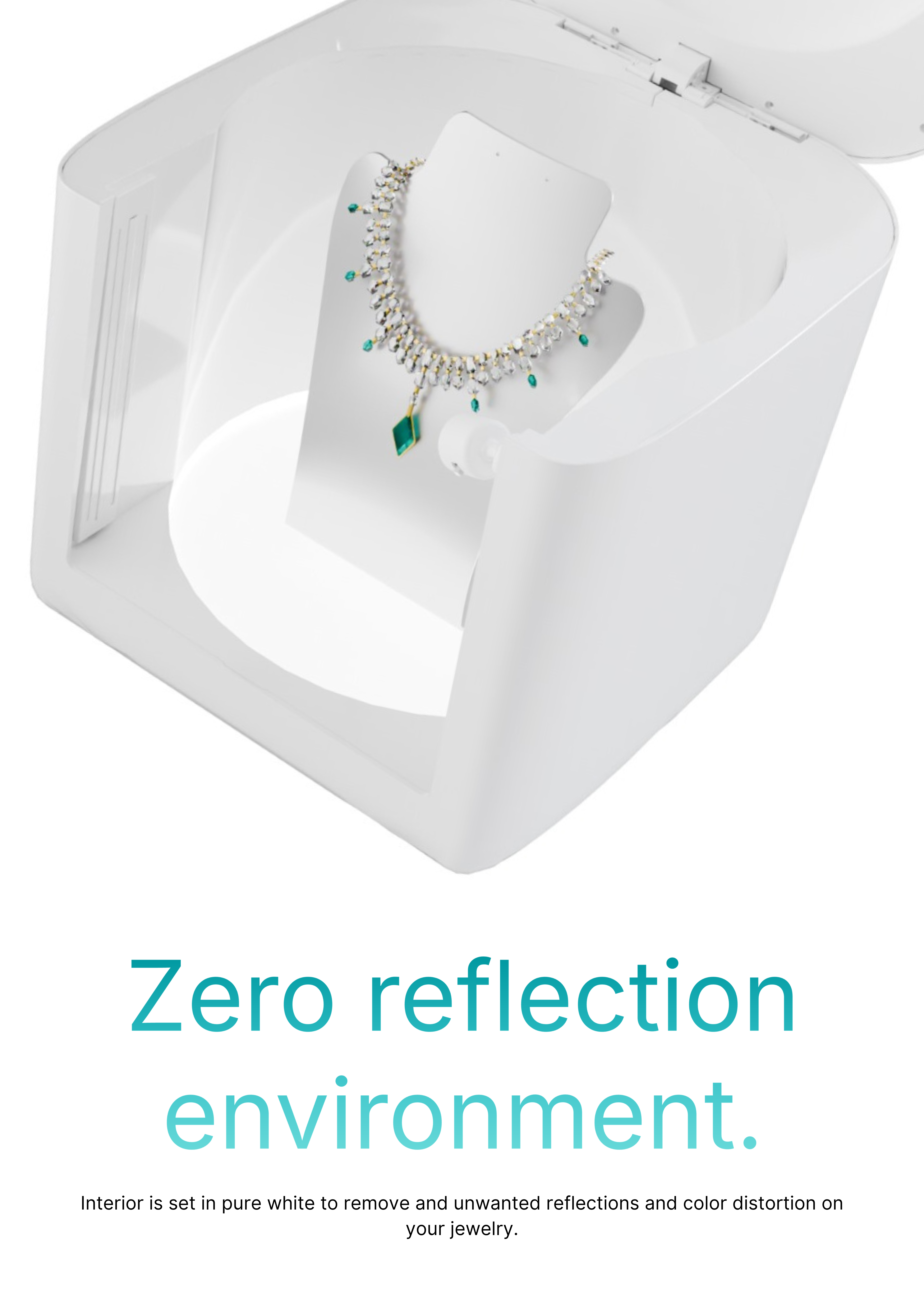
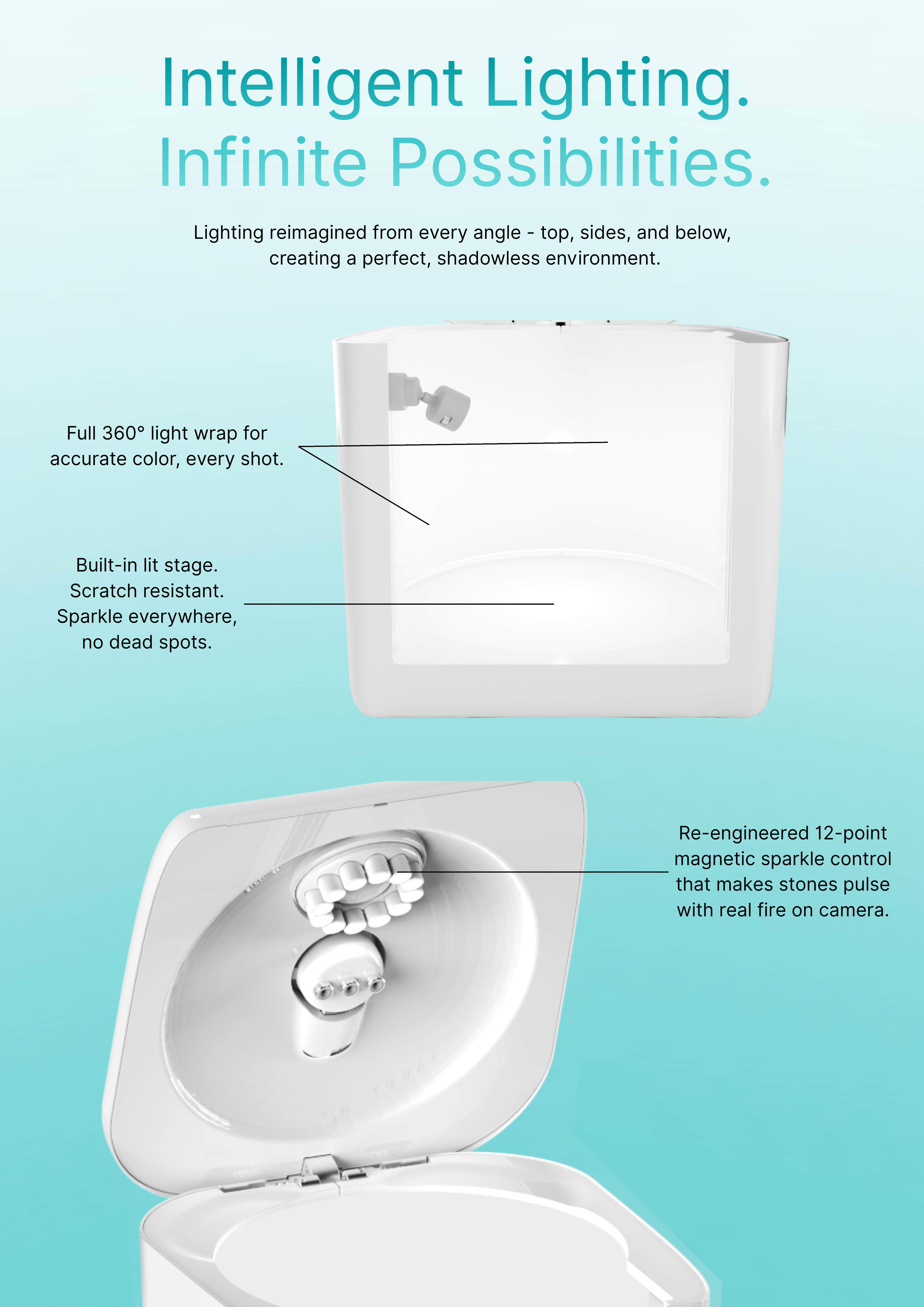
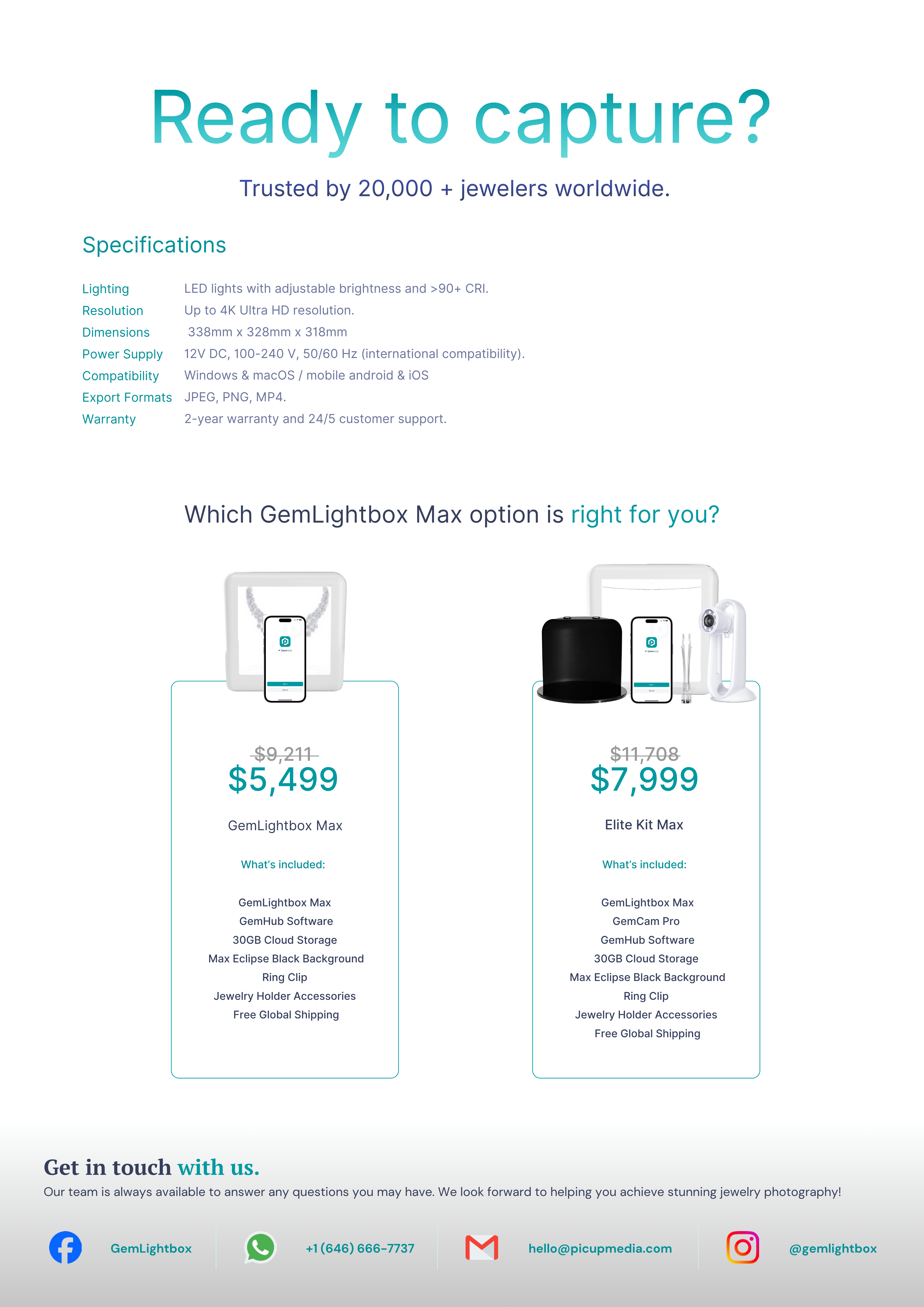
GemCam Pro includes everything you need to start capturing studio-quality jewelry images immediately.
A professional AI-powered camera built specifically for jewelry — optimized for detail, precision, and effortless results.
- GemCam Pro Camera
- USB-C Cable
Connect GemCam Pro to Your Computer
- Plug the provided USB-C cable into the back of the GemCam Pro.
- Connect the other end to your desktop or laptop.
- Your computer will recognize the GemCam Pro automatically.
Your GemCam Pro is now connected and ready to use.
Start Capturing with GemCam Pro
1. Turn On GemCam Pro
Power on your GemCam Pro. The control panel will launch automatically in GemHub.
2. Position Your Jewelry
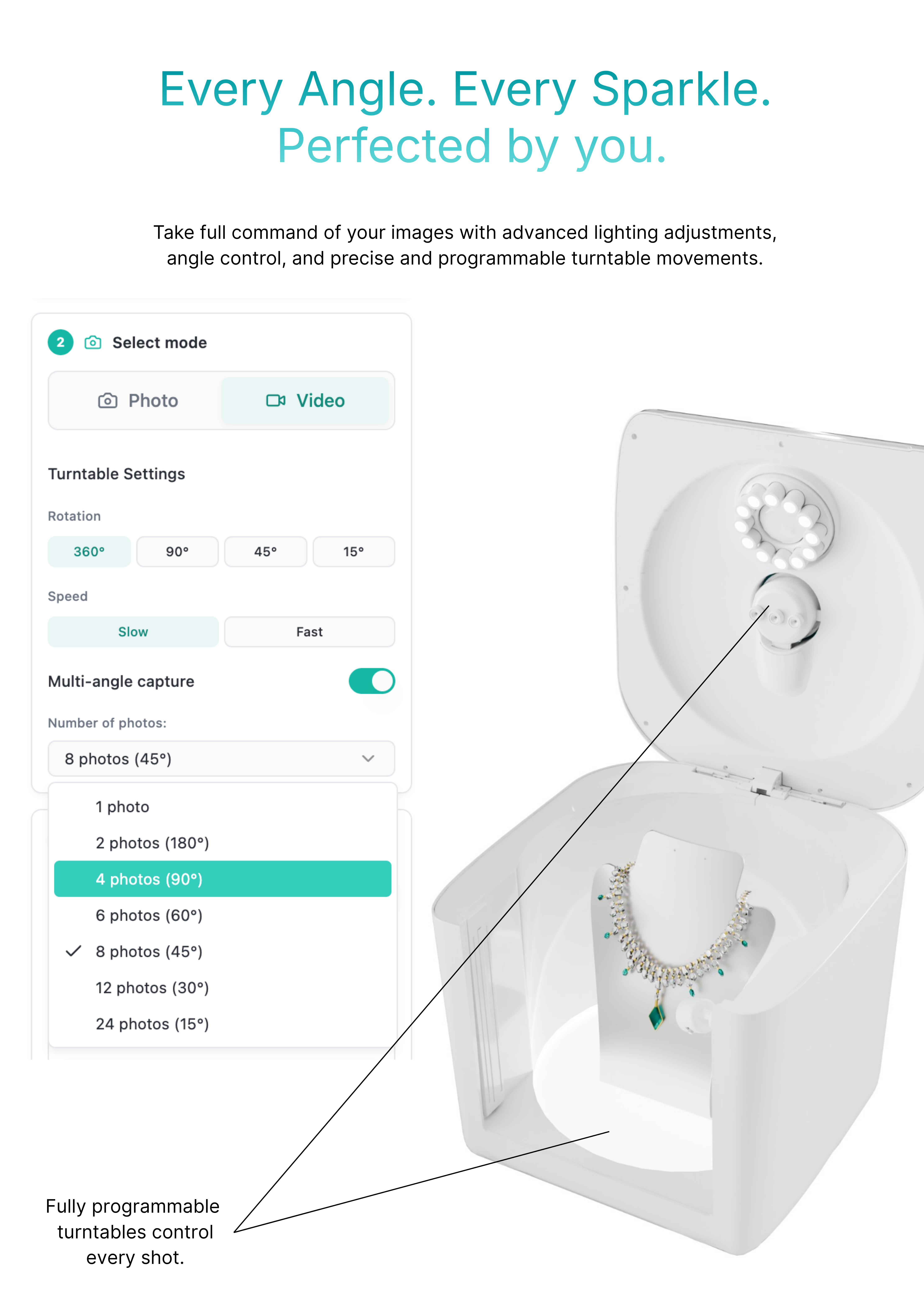
Place your jewelry on the turntable or use the accessories holder (ring clip, necklace holder, or earring holder).
3. Use Live View
Preview your shot in real-time. The camera will auto-focus to keep your jewelry sharp.
4. Capture
Click to capture. With just one click, you'll get sharp, studio-quality images — no manual adjustments needed.
Download GemHub Desktop App
To use your GemCam Pro, you'll need the GemHub desktop app.
Download it now:
- 💻 For Windows: Download for Windows
- 💻 For macOS: Download for macOS
Once installed, open GemHub and click on GemCam to launch the control panel.
System Requirements
- Windows 10 or later / macOS 10.14 or later
- USB-C or USB-A port
- Internet connection for cloud storage
Software Features in GemHub
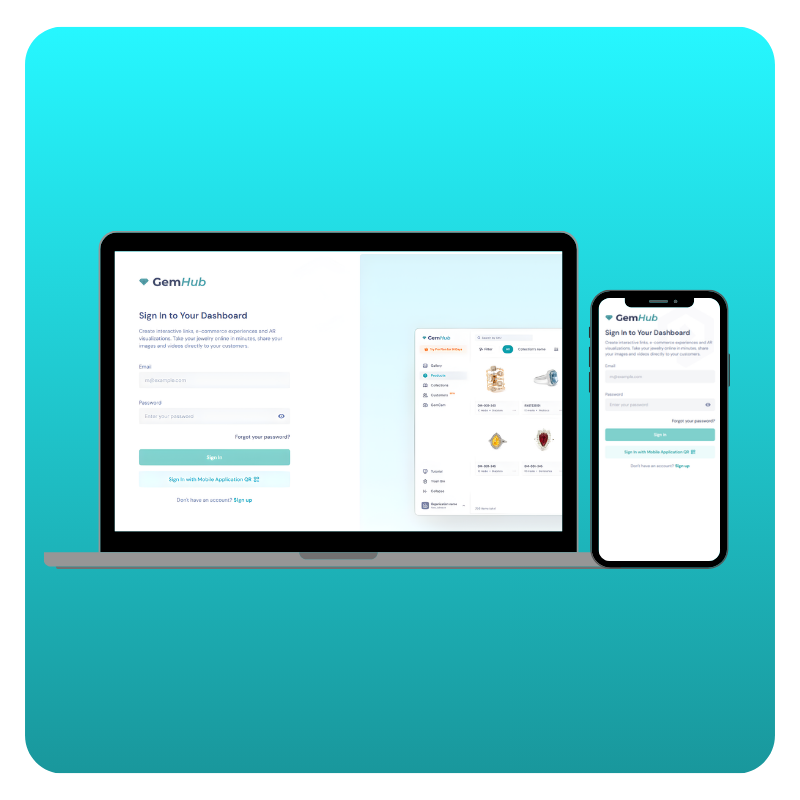
GemHub is where your photos and videos turn into sell-ready jewelry content.
AI Image Editing
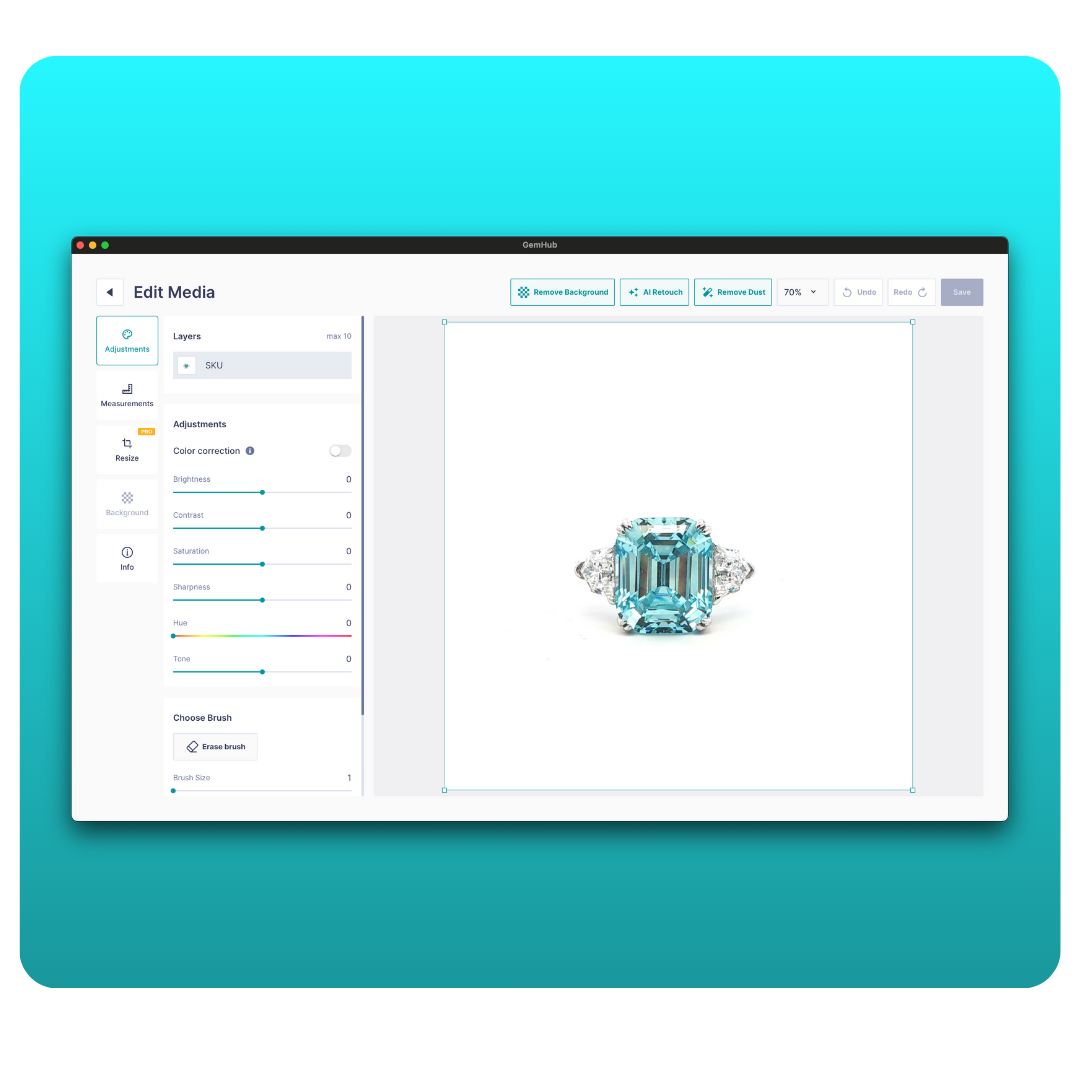
Jewelry-specific AI tools designed to clean, enhance, and prepare your images faster — without manual retouching.
→ AI background removal & retouching → Virtual Try-On models → Resize images after AI editing → Bulk AI image editing
Gallery & Catalog
Organize your media into products, collections, and campaigns — ready for sales, marketing, and listings.
→ Create AI product descriptions → How Gallery, Products & Collections work → Upload media to the Gallery → Manage your Gallery → Filter & search your media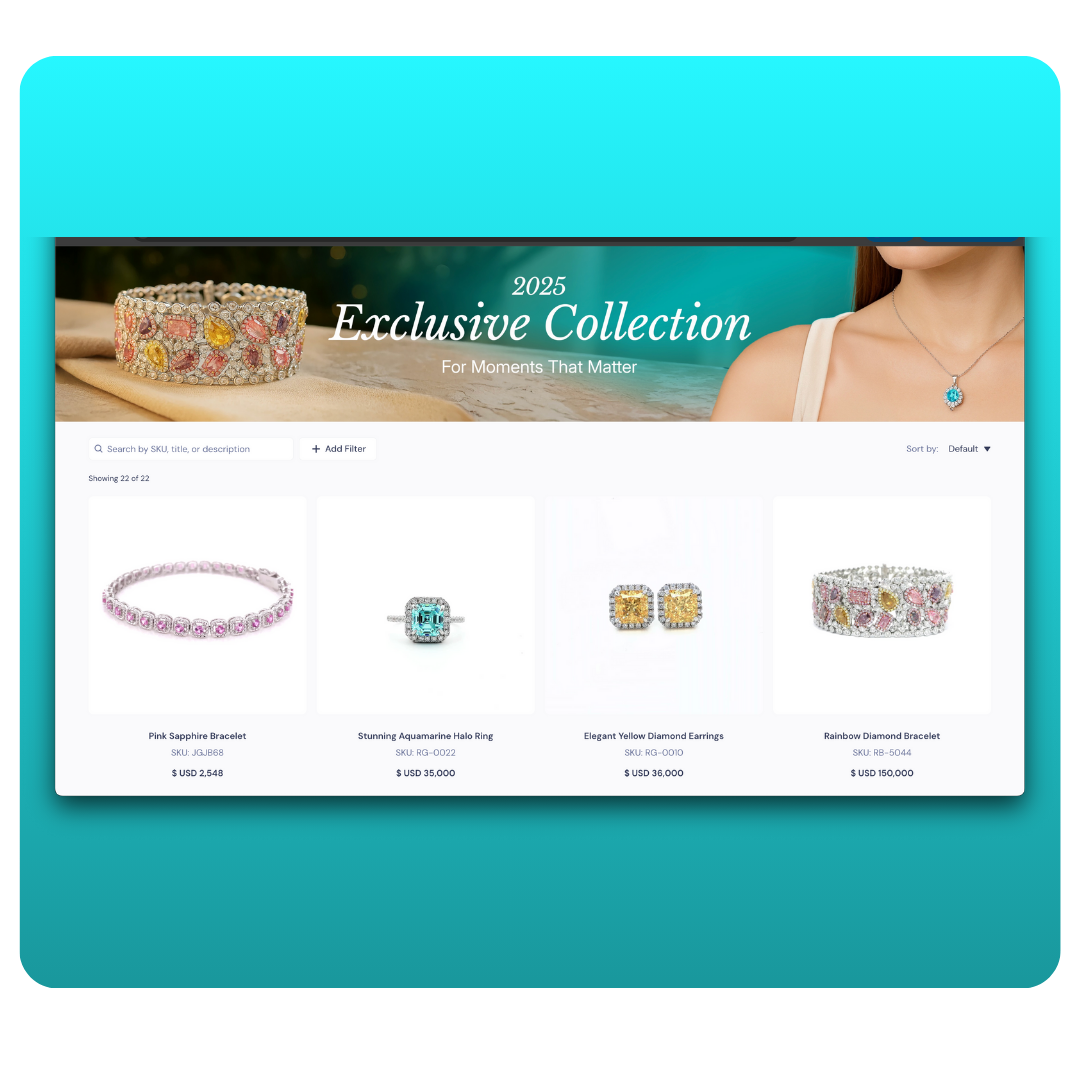
Sharing & Integrations
Use your content everywhere you sell — with consistent branding and flexible sharing options.
→ Share media files → Customize share settings → Use your own custom domain → Embed GemHub videos on your site → Manage product SKUs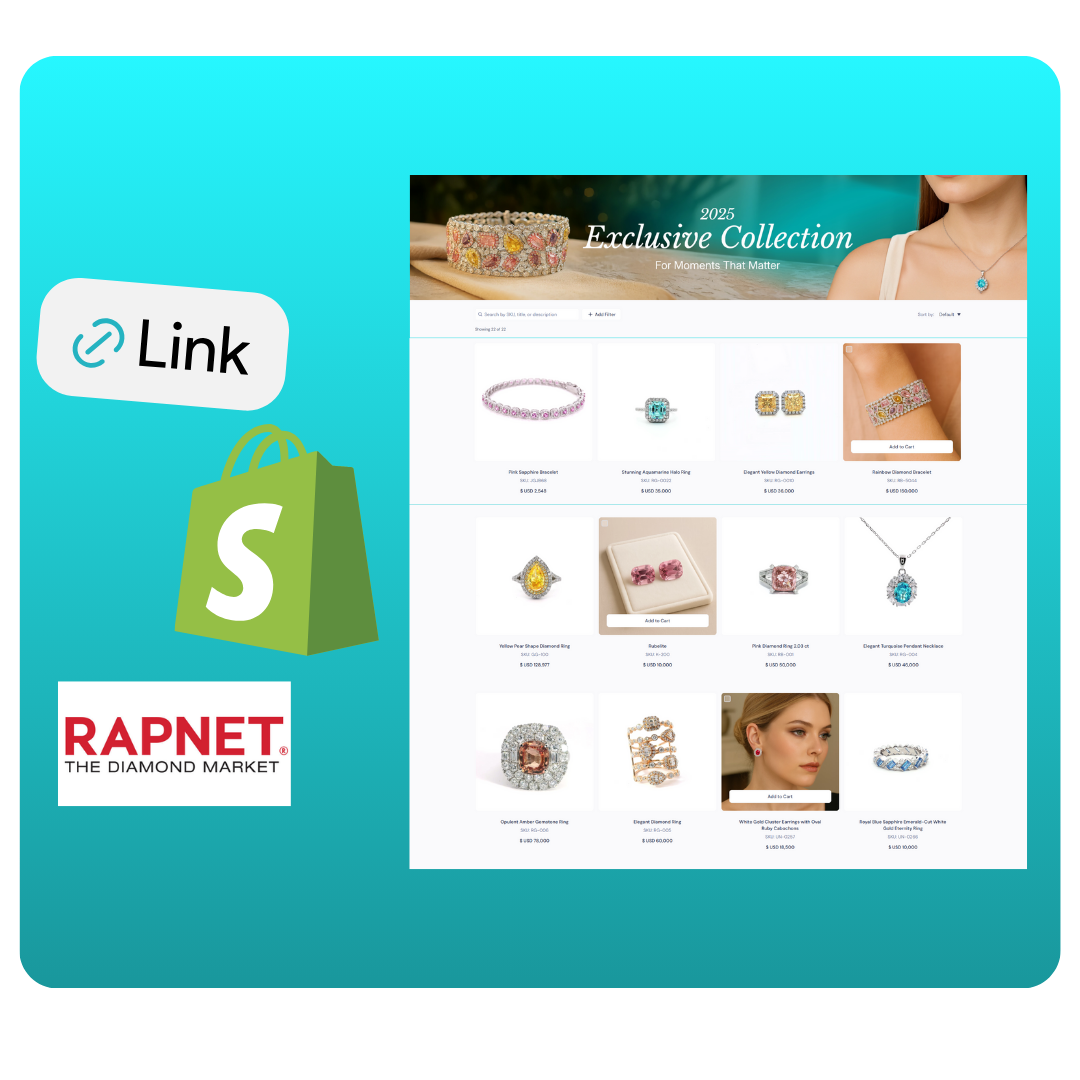
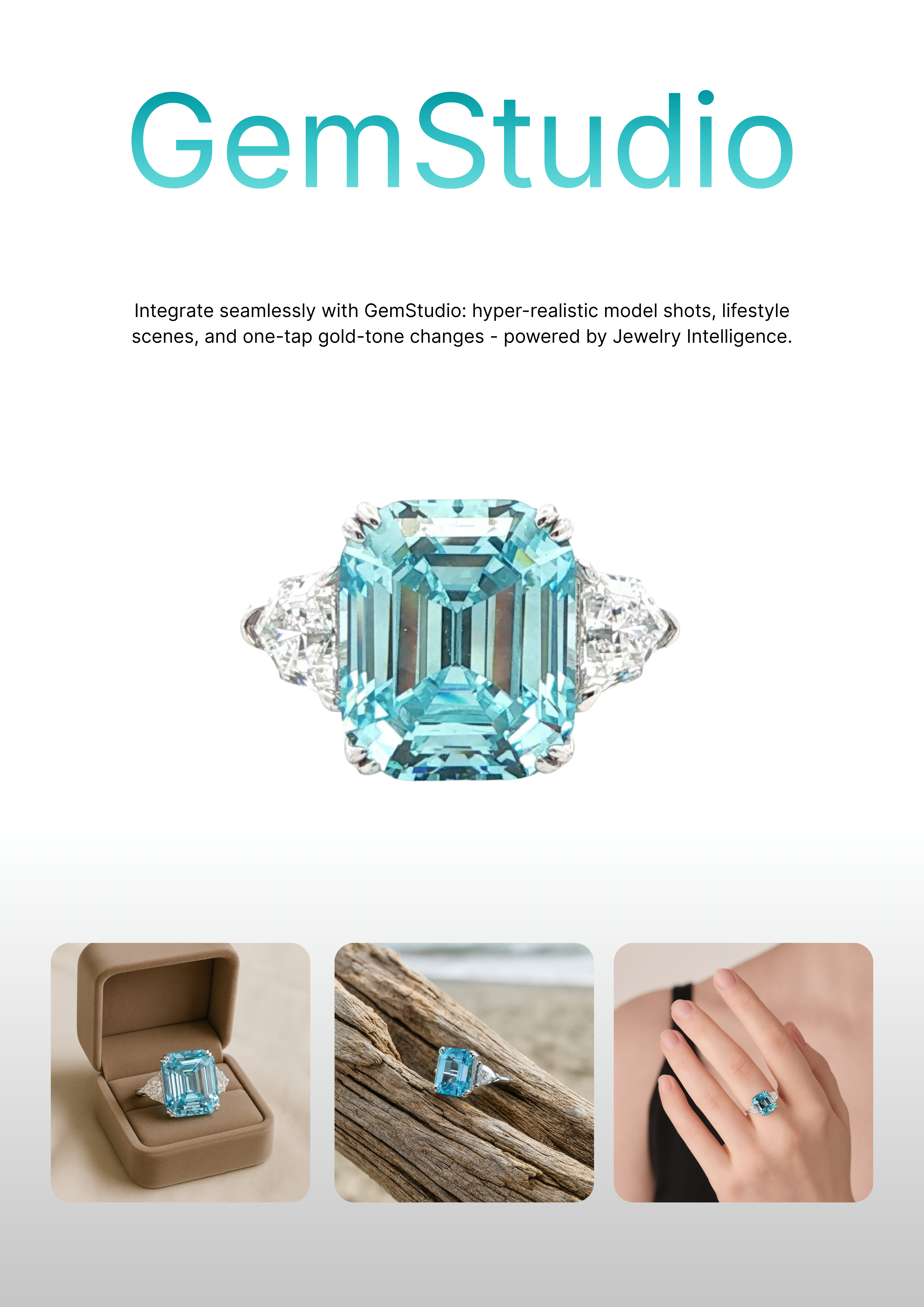
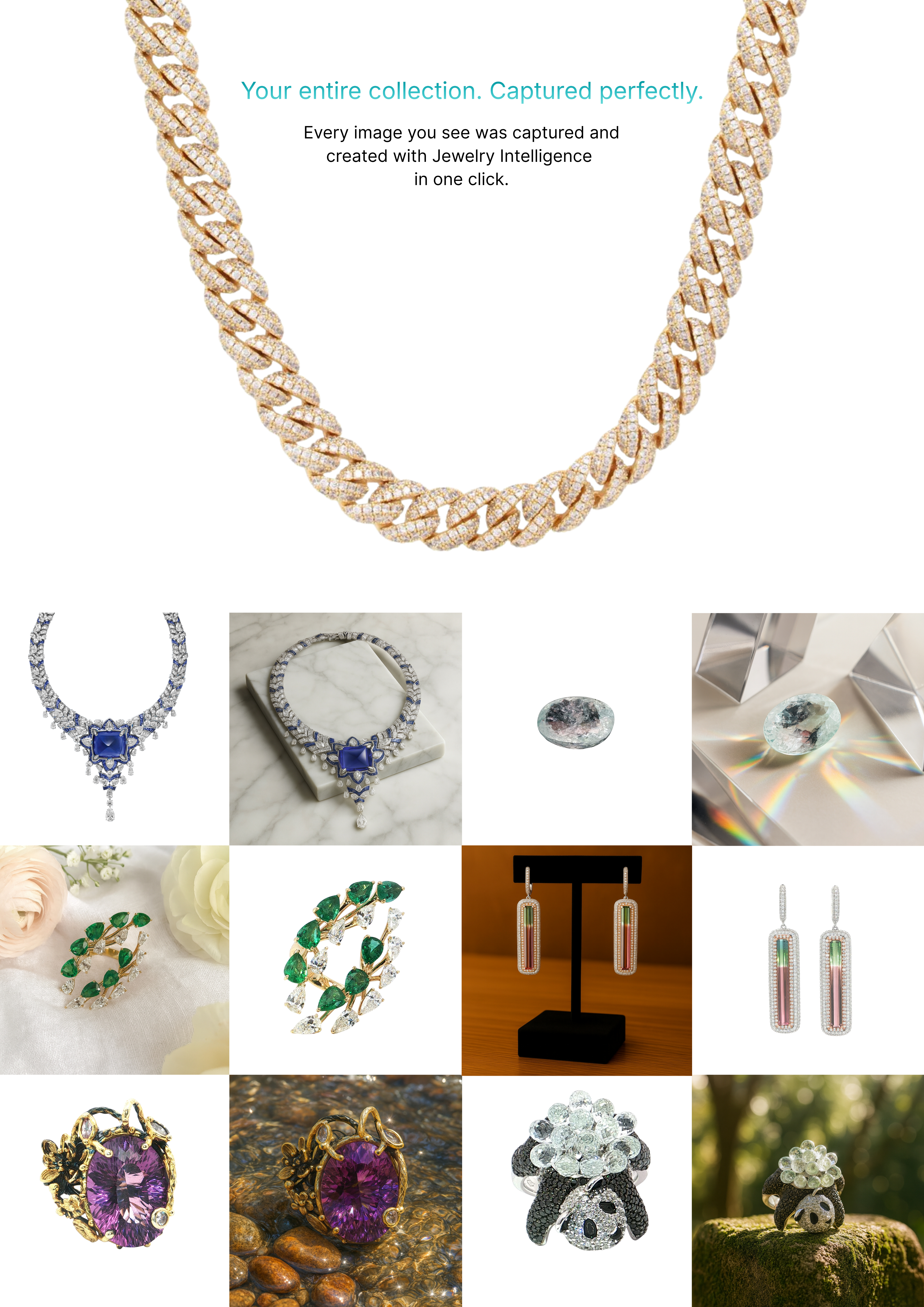
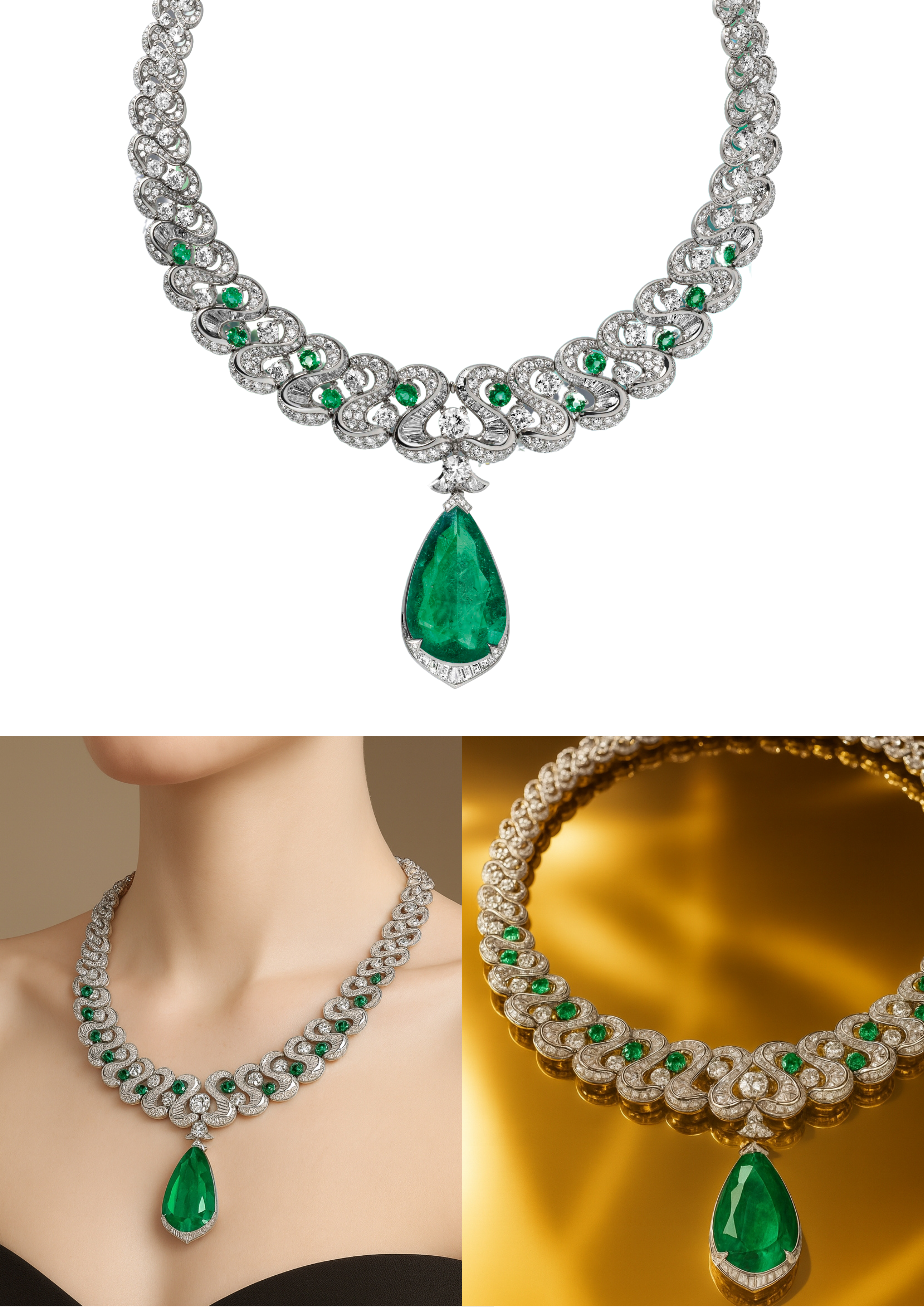
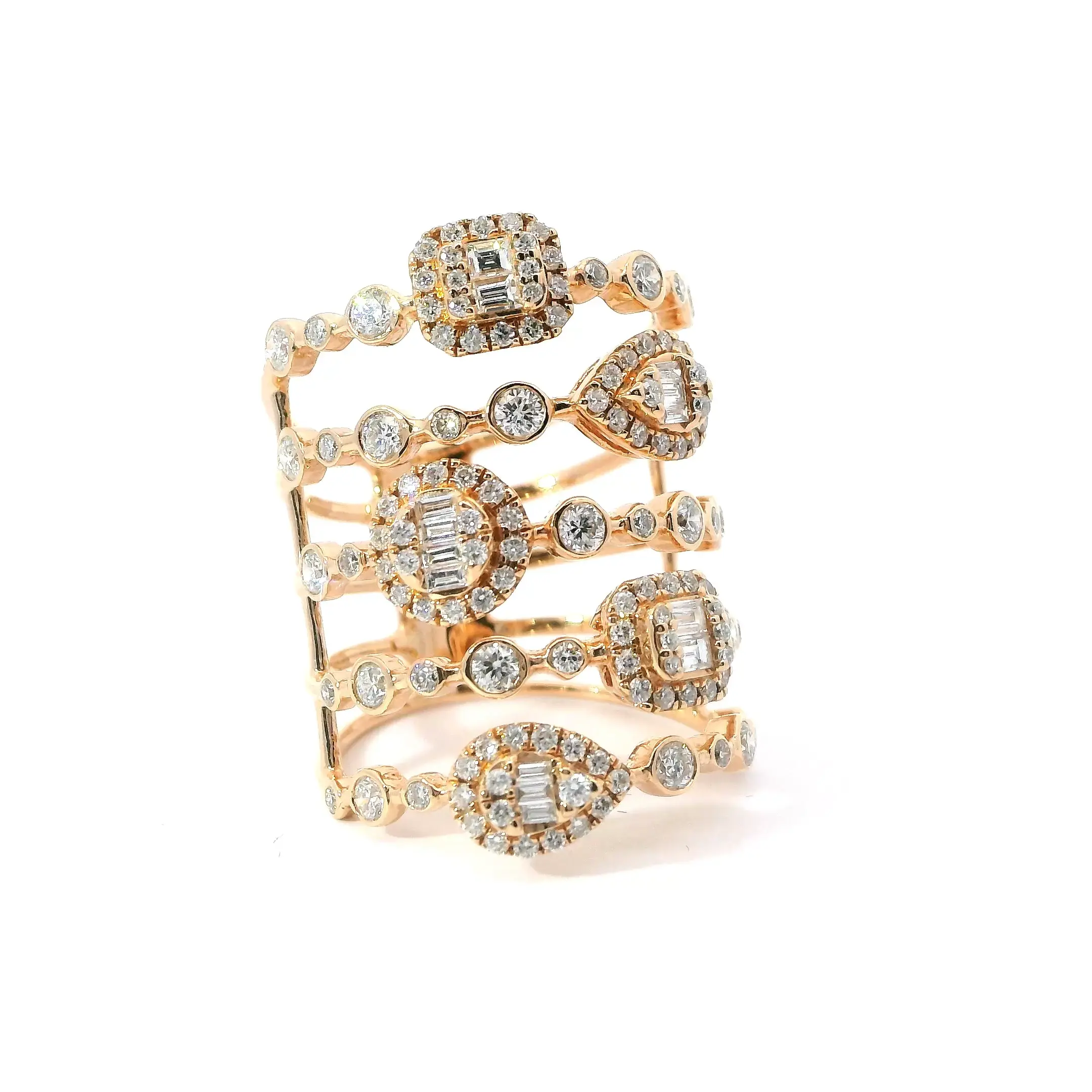
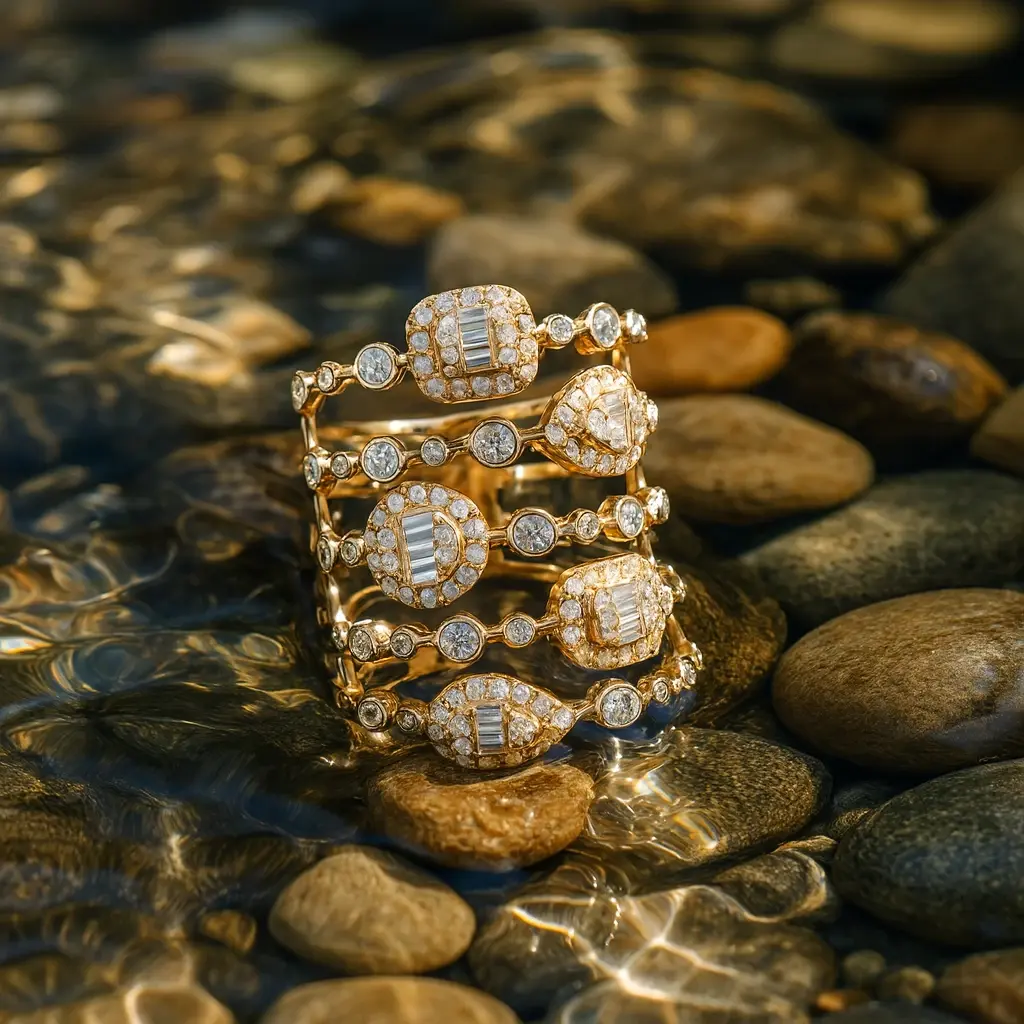
Turn Images Into Sales-Ready Visuals with GemStudio
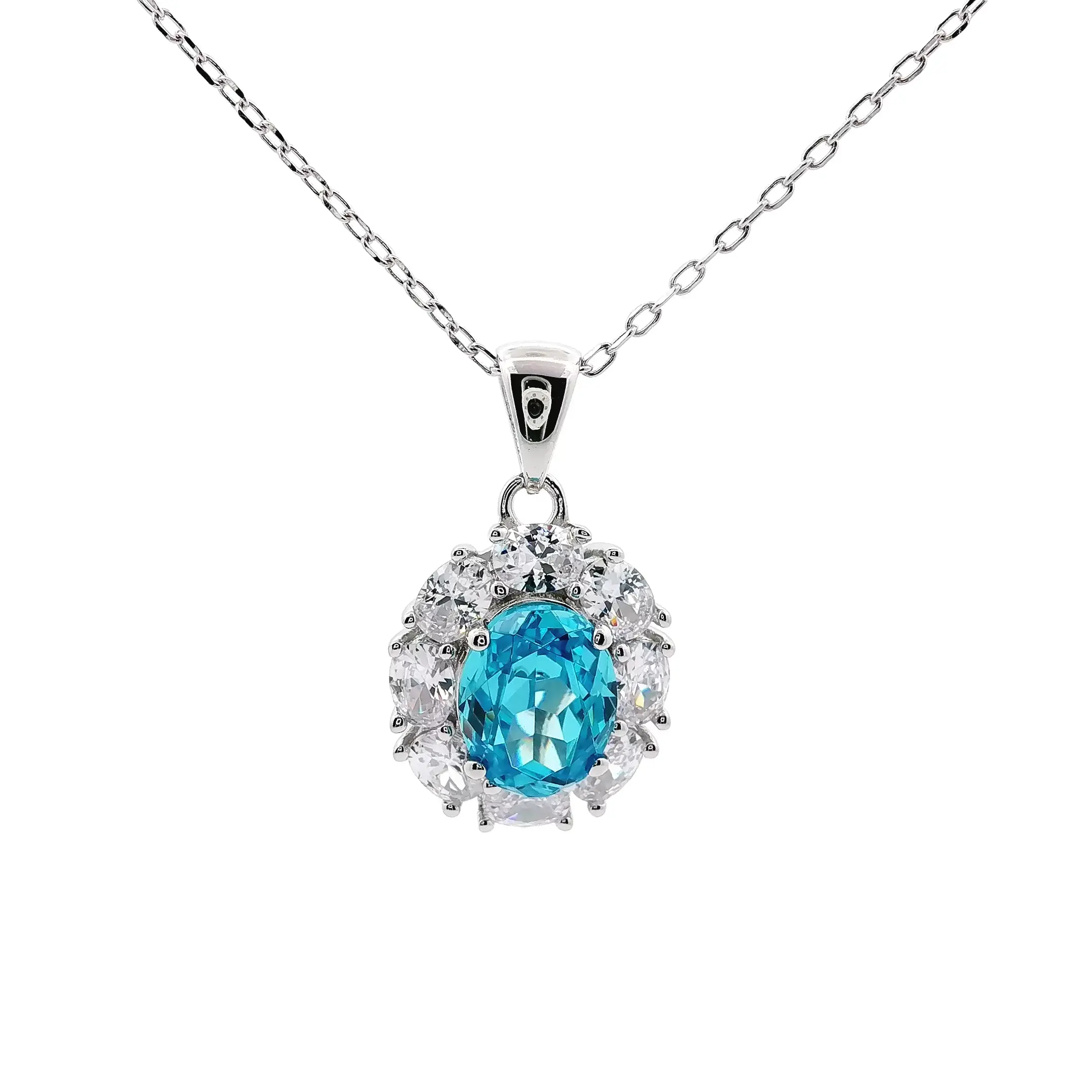
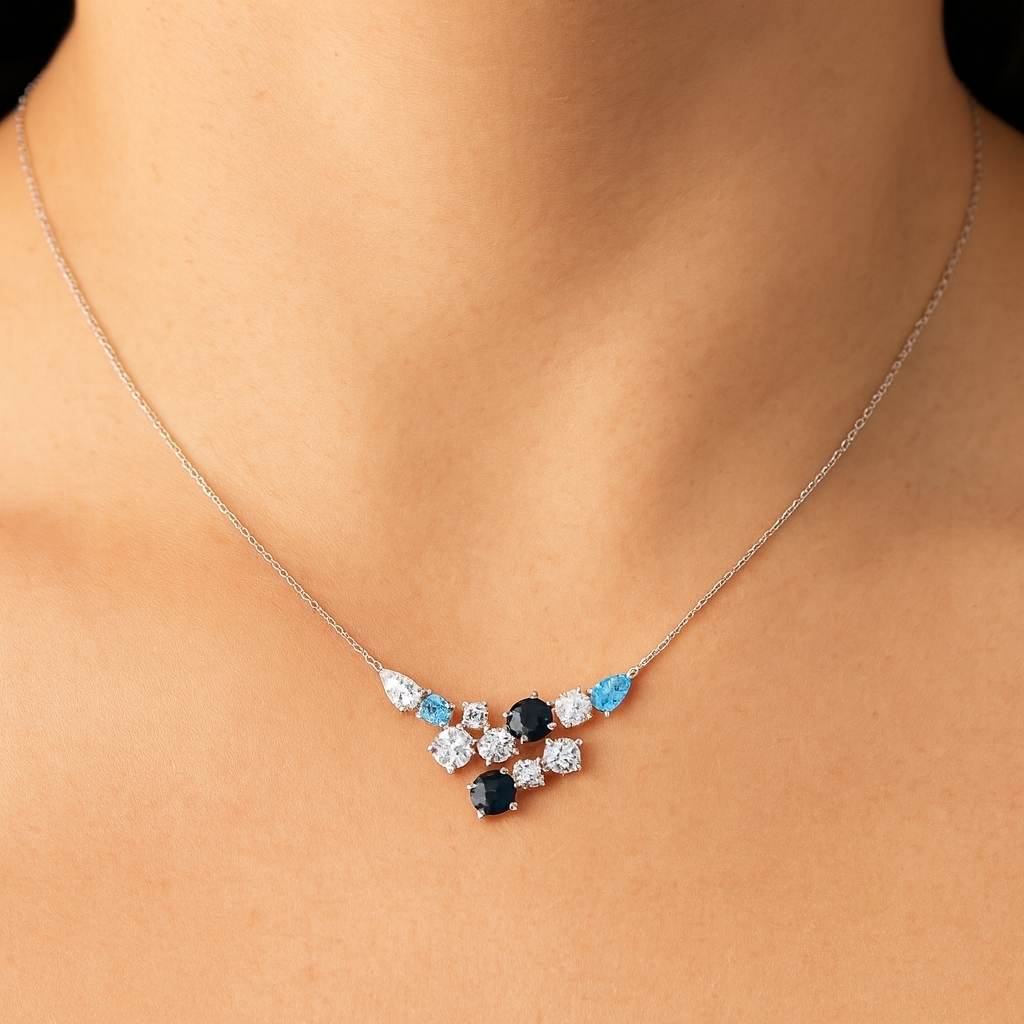
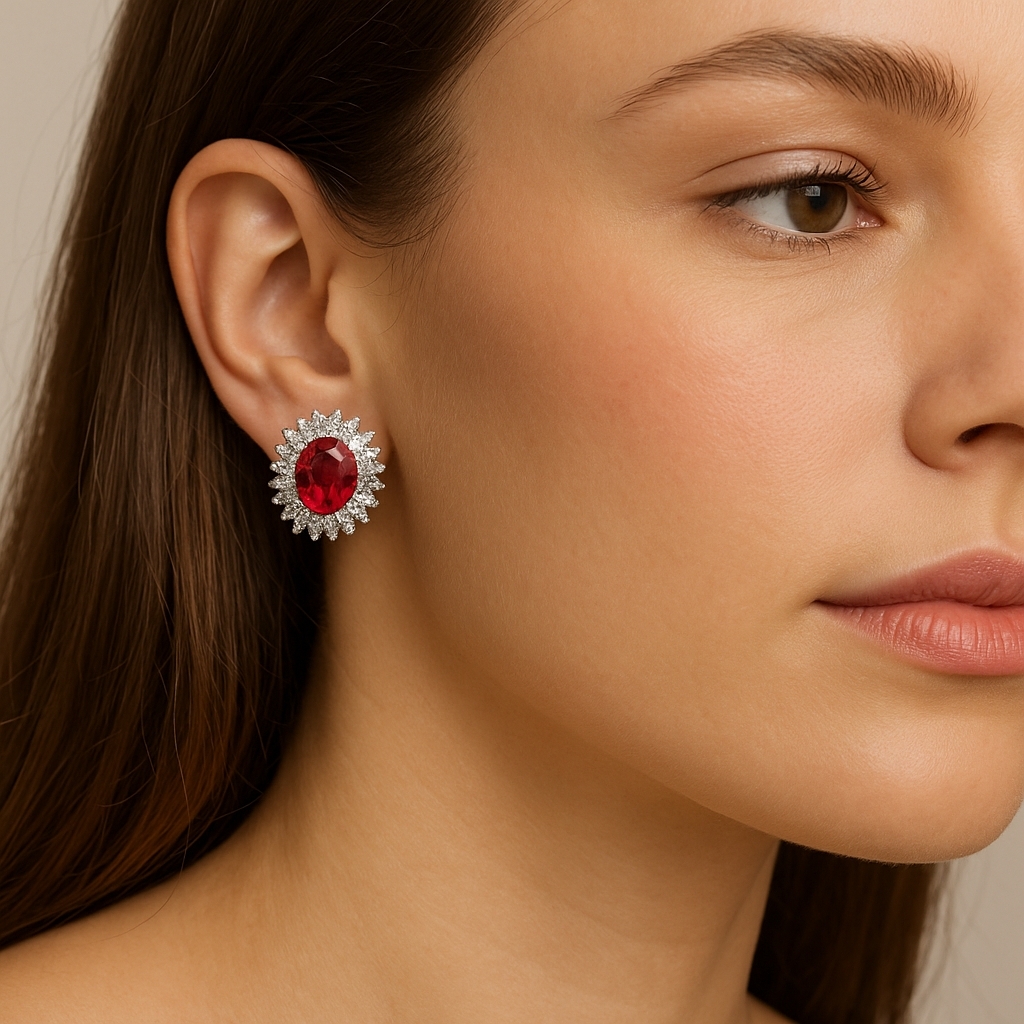
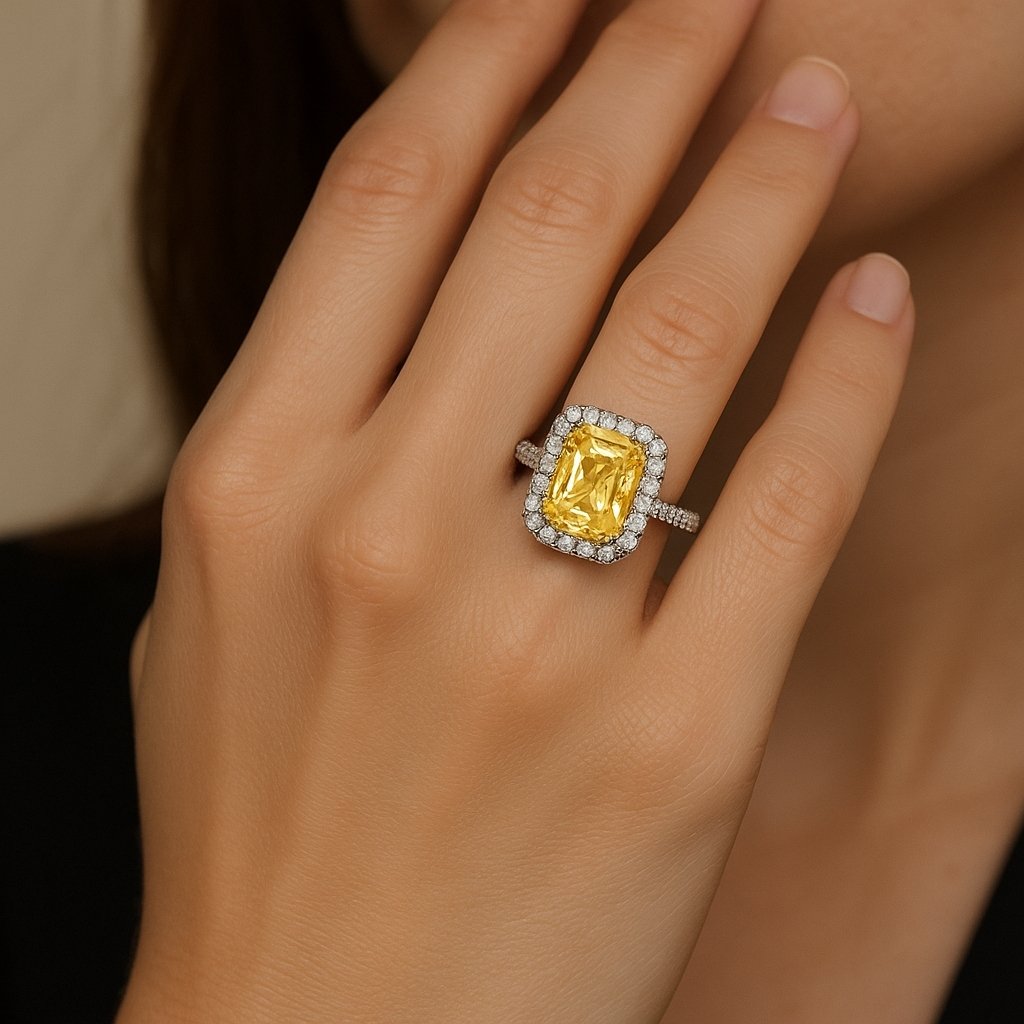
GemStudio helps you turn the photos you capture with GemCam Pro into visuals that help sell jewelry — without reshooting.






Learn, Share & Grow With Other Jewelers
The Digital Jewelers Community is where GemLightbox users come together to learn, share ideas, and grow their businesses.
Whether you’re just getting started or scaling your workflow, the community helps you get more value from your setup.
Join the Digital Jewelers Community
You’re all set!🎉
Your GemCam Pro is ready to go. If you need help or want extra guidance, we’re here for you.
Need 1:1 Onboarding Support?
If you have questions or want help getting set up, book a one-on-one onboarding session with our team.
Book 1:1 Onboarding CallContact Us
For any questions, you can also reach us directly at